
InstaUp APK downloads, version details, installation guides and troubleshooting.
InstaUp APK downloads, version details, installation guides and troubleshooting.


InstaUp login issues can come from different places, so start by checking whether the same Instagram account still works in the official Instagram app or website.
If Instagram itself also rejects the login, fix the Instagram account first. If Instagram works normally but InstaUp does not, check the InstaUp version, network connection, app cache, and installation before reinstalling.
This page does not assume every login failure has the same cause, and it does not guarantee that one troubleshooting step will fix every account.
InstaUp login issues do not have one confirmed cause. Possible causes include an outdated InstaUp build, incorrect credentials, temporary app data problems, network or VPN configuration, an Instagram account issue, or a temporary InstaUp-side service problem.
Because InstaUp is a third-party app, do not assume that every failed login is caused by an Instagram update or an API block. Check whether Instagram itself still accepts the account before troubleshooting InstaUp.
InstaUp connection failed errors stop users from logging into their accounts. Here are the most common error messages and quick ways to fix them.
We have not independently reproduced this exact error, so one cause should not be assumed. First check whether Instagram itself accepts the account, then check the InstaUp version, network connection, VPN/proxy use, and app cache.
Verify the same username and password in the official Instagram app or website first. If Instagram accepts the credentials but InstaUp does not, the message may be coming from InstaUp’s own login flow rather than an actually incorrect password.
If the error continues, note the exact message before moving to reinstall or support.
If you face InstaUp login issues, use the checks below in order. Start with the Instagram account itself before changing app settings.
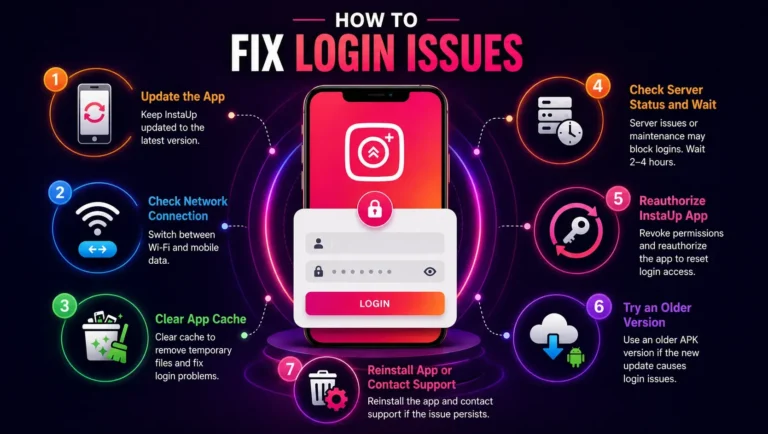
An outdated build can contain bugs that were fixed in later releases. Use the current InstaUp download available on this site and avoid random APK sources.
Confirm that other websites and apps can connect normally. Turn off any VPN or proxy, then test InstaUp again on a stable connection. Changing networks can help identify a connection-specific problem, but it is not a guaranteed login fix.
Temporary app data can sometimes interfere with a session. On Android, open Settings, find InstaUp under Apps, then use the storage option to clear the app cache. Start with cache rather than clearing all app data.
If Instagram works but InstaUp fails across repeated attempts, a temporary service-side issue is possible. There is no verified fixed waiting period, so avoid relying on exact claims such as “2 to 4 hours.” Record the error and retry later.
If Instagram itself asks for verification, rejects the password, or shows an account warning, resolve that through Instagram before troubleshooting InstaUp. App permissions on Android should not be described as a way to reset an Instagram login token.
Do not downgrade automatically to fix a login problem. An older InstaUp version may help only when you are checking a build-specific compatibility issue, and older builds can contain their own bugs.
If InstaUp crashes, will not open correctly, or appears to have a damaged installation, reinstalling may help. We have not verified that every local setting or coin-related value survives an uninstall. If Instagram works but InstaUp still does not, record the exact error, Android version, phone model, and InstaUp version before contacting the developer.
Third-party APKs can affect your Instagram account, so check a few things before you log in. Start with the file itself and skip any download that seems unusual.
Choosing trusted APK sources and watching your account activity can help you avoid common security problems.
For version notes, support details, and Instagram account-recovery guidance, we checked the following primary sources:
Verification note: We have not independently reproduced every InstaUp login error listed on this page, so troubleshooting steps are presented as checks rather than guaranteed fixes.
This guide is for informational purposes only and isn’t legal or professional advice. We are not affiliated with Instagram, Meta, or InstaUp’s developers. Third-party tools like this operate outside Instagram’s official terms, so results can vary, and your account may be at risk. Back up your account before making changes, stick to Instagram’s official rules where you can, and only download files from sources you trust. Anything you do with this guide is at your own discretion.
Reset your password quickly, turn on two-factor authentication, and use Instagram’s recovery help if locked out.
If Instagram itself will not let you log in, use Instagram’s official password, verification, or account-recovery process first. Fixing InstaUp will not resolve an Instagram account restriction.
Reinstall only when the app appears damaged, crashes, or will not open correctly. We have not independently verified that every local setting or coin-related value survives an uninstall.
First test the same credentials in the official Instagram app or website. If Instagram works but InstaUp does not, check the InstaUp version, network, VPN/proxy settings, and app cache.
Use “Forgot Password” or official recovery steps. If hacked, follow Instagram’s support instructions.
For InstaUp login issues, first check whether the Instagram account itself still works. If Instagram works normally, update InstaUp, check the network, clear the app cache, and restart the app before reinstalling. Avoid repeated random fixes or assuming a secondary account makes third-party login risk-free.