InstaUp APK downloads, version details, installation guides and troubleshooting.
InstaUp APK downloads, version details, installation guides and troubleshooting.

InstaUp PC is not a native Windows program. InstaUp is an Android application, so the practical way to use it on a Windows computer is to run the APK inside an Android emulator. There is no native Windows .exe file provided through this site’s current download flow.
TESTED ON WINDOWS
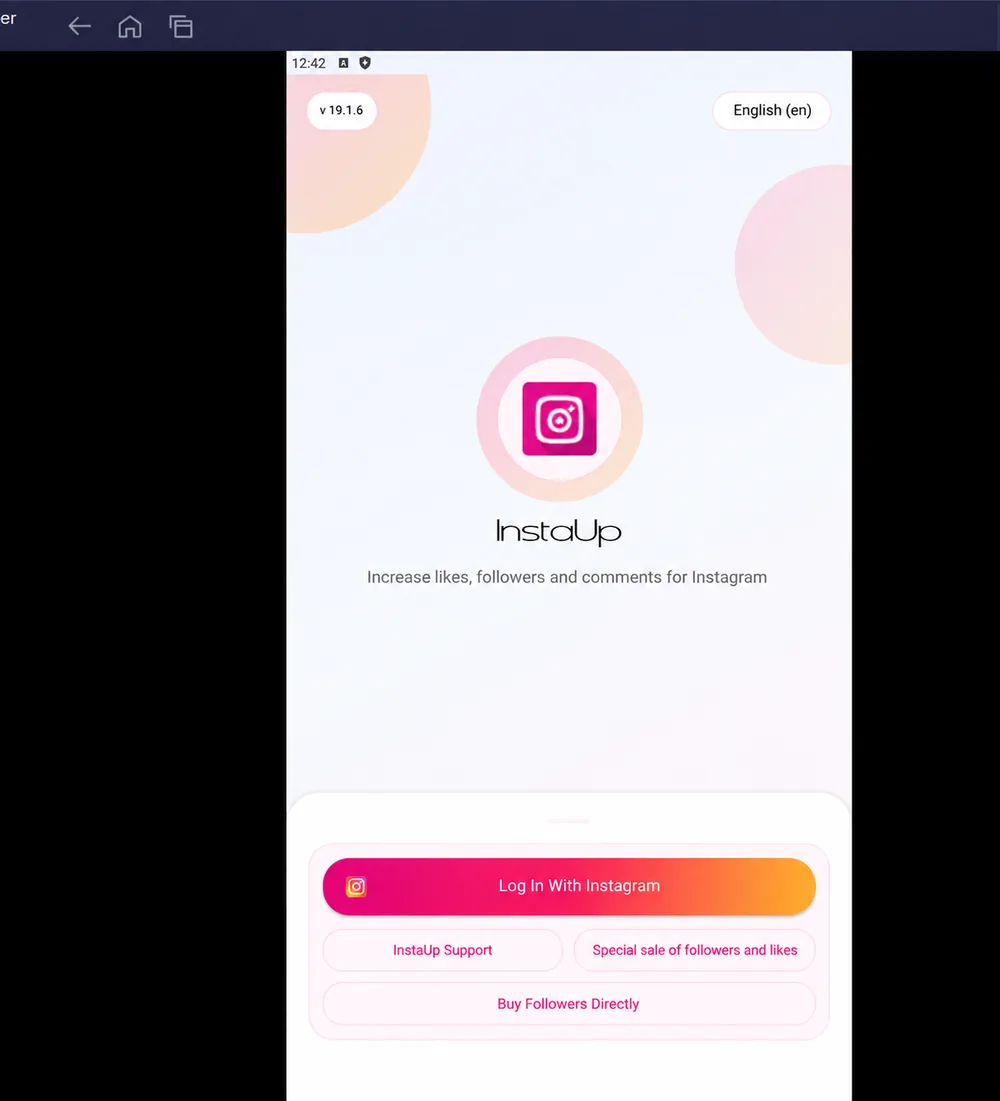
We installed InstaUp in BlueStacks 5 on Windows. The downloaded build launched as v18.7.3 and displayed an update notice for v19.1.6. After updating, InstaUp v19.1.6 launched successfully and reached the Instagram login screen. Login and follower-related features were not tested.
QUICK ANSWER
To use InstaUp PC on Windows, install BlueStacks 5, download the InstaUp APK, then import the APK into BlueStacks. Mac compatibility is more limited and has not been independently tested by us.
Not as a normal native Windows program. An APK is an Android application package, so Windows needs an Android runtime or emulator to install and run it.
| Platform | Current setup |
|---|---|
| Android phone | Install the APK directly |
| Windows PC | Run the APK inside an Android emulator |
| Mac | Requires a compatible Android environment; see the Mac section below |
| iPhone/iPad | An Android APK cannot be installed directly; see our InstaUp iOS guide |
The main PC requirements come from the Android emulator rather than InstaUp itself. BlueStacks currently lists the following minimum requirements for BlueStacks 5.
| Requirement | Minimum |
|---|---|
| Processor | Intel or AMD processor |
| RAM | 4 GB |
| Storage | 5 GB free disk space |
| Access | Administrator access |
| Graphics | Current graphics drivers |
BlueStacks recommends Windows 10 or later, 8 GB or more RAM, an SSD, and hardware virtualization for better performance. BlueStacks 5 system requirements
BlueStacks says Windows 7 and Windows 8 can use BlueStacks 5.21.300 and earlier, while the latest BlueStacks versions and features require Windows 10 or later. For a new setup, Windows 10 or Windows 11 is the more practical choice.
Download BlueStacks from its official website and complete the Windows installation. You do not need a special “InstaUp PC EXE.” The Android APK is installed inside BlueStacks.
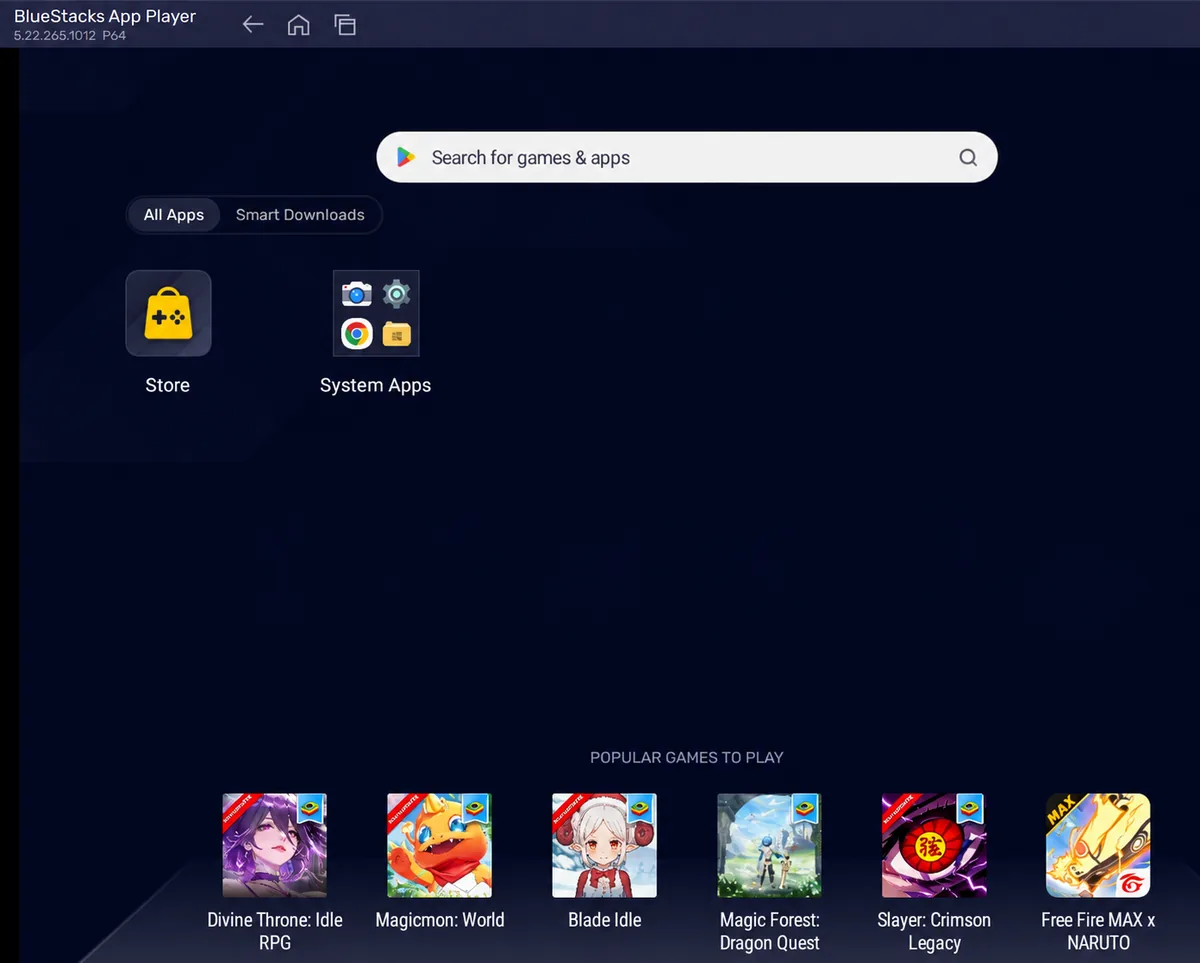
Open our InstaUp Downloads page and save the APK somewhere easy to find, such as your Downloads folder.
Launch BlueStacks 5. A Google Play login is not required just to import a local APK file.
BlueStacks documents two ways to install a local APK: use the Install APK control in the side toolbar or drag the APK file into the BlueStacks window. See BlueStacks APK installation instructions.
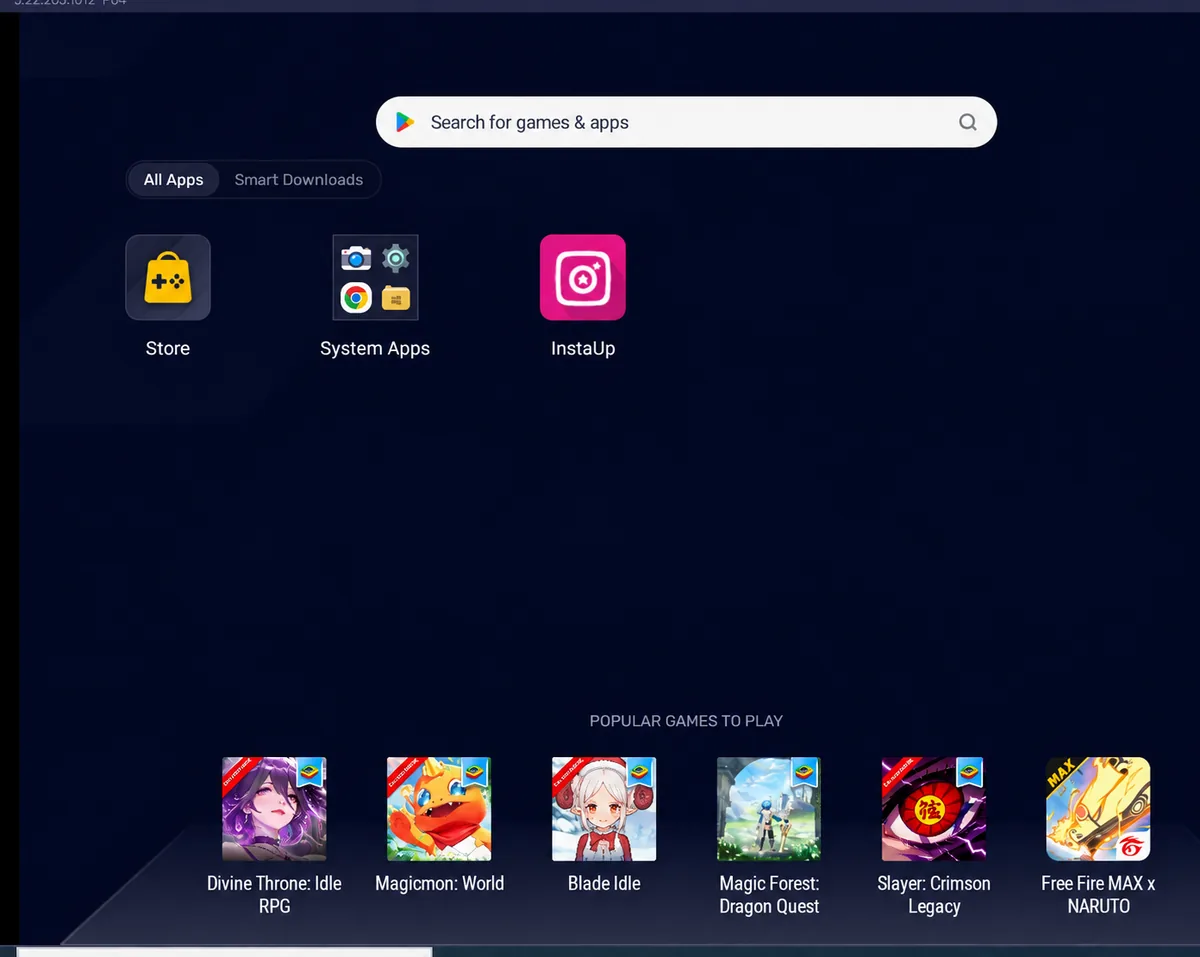
Click the InstaUp icon after installation. During our Windows test, the app successfully opened inside BlueStacks. The initial build showed an update notice for v19.1.6; after updating, v19.1.6 reached the Instagram login screen.
An APK can fail to install when the Android version used by the emulator is incompatible with the application. BlueStacks recommends using a different Android instance when an APK requires another Android version.
Emulator performance depends heavily on the computer. Before assuming InstaUp itself is causing the problem, check the emulator environment.
These are emulator-level requirements and recommendations, not claims that InstaUp itself will run faster on every PC.
There is no native InstaUp macOS application provided through this site’s current APK download flow.
BlueStacks currently offers BlueStacks Air for supported Apple Silicon Macs. Its published minimum requirements include macOS 11 Big Sur or later, Apple Silicon M1–M4, 8 GB RAM, and 12 GB free storage. BlueStacks Air system requirements.
MAC COMPATIBILITY NOTE
We have not independently tested InstaUp on a Mac. BlueStacks Air supports compatible Apple Silicon Macs, but InstaUp-specific compatibility has not been verified by us. We therefore do not claim guaranteed Mac support.
Using InstaUp on a PC does not unlock a separate desktop edition. It runs the Android APK inside BlueStacks, but the desktop setup still changes how you access and view the app.
Running an Android app inside an emulator does not remove the risks associated with third-party Instagram-related tools. Review the permissions or credentials an app requests and check Instagram’s current platform rules before using automation or engagement features.
| Area | Windows | Mac |
|---|---|---|
| Emulator | BlueStacks 5 | BlueStacks Air |
| Local APK route | Documented and tested by us | InstaUp-specific result not tested by us |
| Minimum RAM | 4 GB for BlueStacks 5 | 8 GB for BlueStacks Air |
| Evidence on this site | InstaUp v19.1.6 reached the login screen after update | No first-hand test yet |
This guide combines first-hand Windows testing with current documentation from BlueStacks. We separate what we personally tested from what is based on the emulator developer’s published requirements.
Tested and reviewed by: InstaUp APK Latest Version technical team
Last reviewed: September 19, 2026
No native InstaUp PC .exe has been verified by us. The method documented here uses the Android APK inside BlueStacks 5.
Not in the sense of turning the Android application into a normal native Windows program. An APK requires an Android runtime or compatible environment.
BlueStacks 5 supports Windows 11. In our Windows test, InstaUp installed and launched successfully inside BlueStacks, and v19.1.6 reached the Instagram login screen after updating.
Older BlueStacks 5 releases can run on Windows 7, but BlueStacks states that current versions and features require Windows 10 or later. For a new setup, Windows 10 or Windows 11 is the safer documented route.
We do not currently make that guarantee. BlueStacks Air supports compatible Apple Silicon Macs, but we have not completed an InstaUp-specific Mac test.
That becomes an app, account, or network troubleshooting issue rather than an APK installation issue. Use the login troubleshooting section linked earlier on this page.
Last reviewed: September 19, 2026.
For Windows, InstaUp PC runs by using the InstaUp Android APK inside BlueStacks 5. There is no need to look for a separate “InstaUp PC EXE.” In our Windows test, InstaUp successfully launched in BlueStacks and v19.1.6 reached the Instagram login screen after updating.
Mac support needs more caution. BlueStacks Air supports compatible Apple Silicon Macs, but InstaUp-specific Mac compatibility has not yet been independently tested by us.